
Maybe the new Mobile Legends update broke your game. Maybe you got a warning letter from Moonton. Or maybe you just want your default “classic” look back. Whatever the reason, you are trying to delete Zolaxis Patcher, but—Awit—the skins are still there even after you uninstalled the app!
Here is the thing most players get wrong: Uninstalling the Zolaxis APK does NOT remove the skins.
I’m Daniel Foster, and I’m going to show you how to perform a “Clean Uninstall”. I will teach you how to remove the injected scripts and restore your original game files without re-downloading 5GB of data.
Key Takeaways: Read Before You Delete
- The APK is just the Tool: Deleting the Zolaxis app icon does not delete the files it injected into your game folder.
- Try “Restore Default” First: The app has a built-in button to undo changes. Use this before uninstalling.
- Don’t “Clear Data”: Clearing Game Data deletes everything. Only “Clear Cache” is safe.
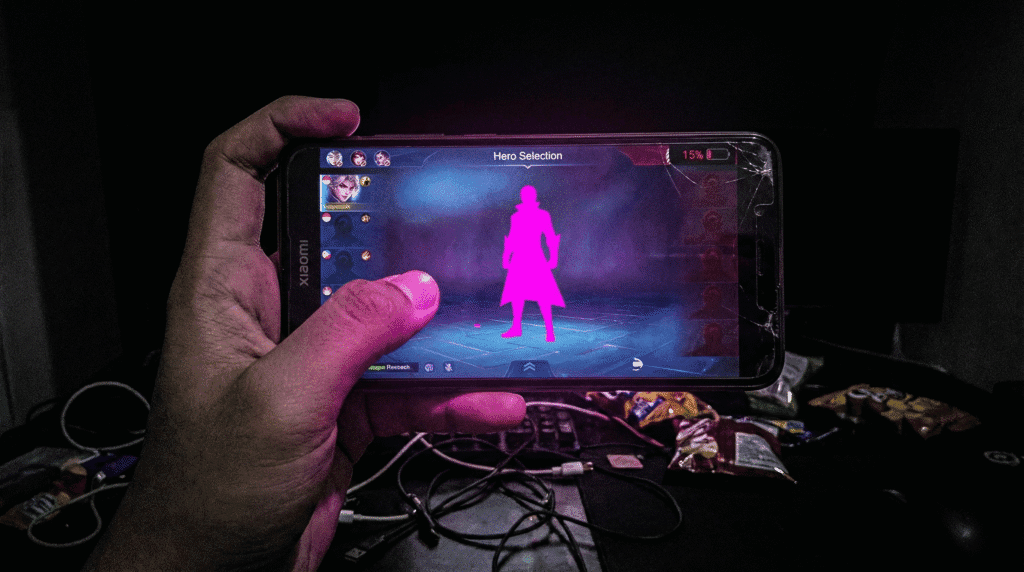
- The “Pink Hero” Risk: If you remove a skin incorrectly, your hero might turn pink/invisible. We will fix that too.
The Technical Reality: Why Uninstalling Fails
Why is it so hard to just go back to normal?
Zolaxis Patcher works by overwriting specific asset files inside your Android system (com.mobile.legends).
- Analogy: Imagine Zolaxis is a spray paint can, and MLBB is a wall. If you spray paint graffiti on the wall, throwing away the spray can (uninstalling the app) doesn’t clean the wall. The paint is still there.
To fix this, we need to scrub the wall (Restore Default) or replace the wall entirely (Reinstall) without destroying the house (Your Data).
Method 1: The “Soft Reset” (Do This First)
Before you delete the app, use its own tools to clean up the mess. This is the easiest method.
- Open Zolaxis Patcher.
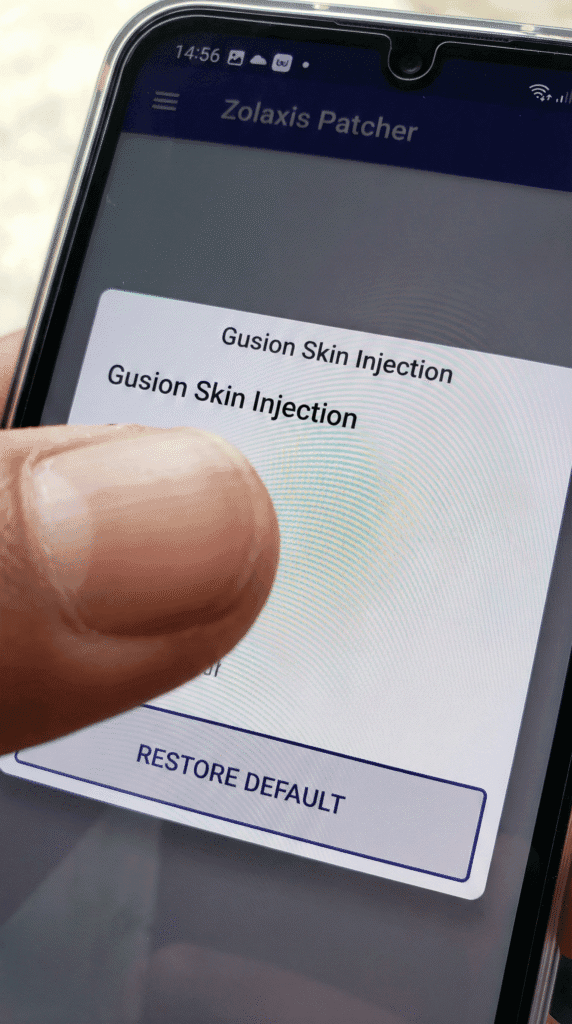
- Go to the Skin Injection menu where you selected your skin (e.g., “Assassin” > “Gusion”).
- Look for a button usually labeled “Restore Default”, “Backup”, or “Original”.
- Tap it. The app will inject the original file back into the game folder, overwriting the custom skin.
- Check the Game: Open MLBB. If the skin is gone, now you can safely uninstall the Zolaxis APK.
Method 2: The “Rename Trick” (Save Your Data!)
If Method 1 didn’t work, or if you already deleted the app and the skins are stuck, you might think you need to reinstall MLBB. Wait! Don’t waste your data.
Use the Rename Trick to reinstall the game base without re-downloading the huge resource files.
Step 1: Hide Your Data
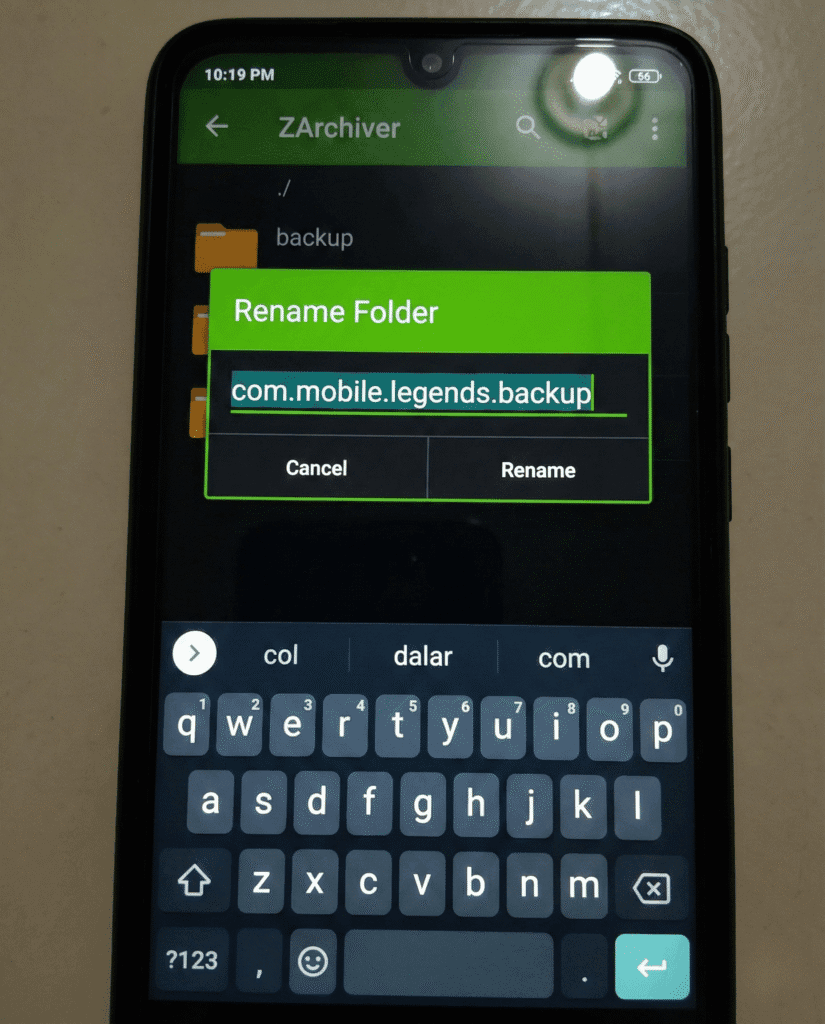
- Open your File Manager (or ZArchiver).
- Go to
Internal Storage > Android > data. - Find the folder named
com.mobile.legends. - Long Press and select Rename.
- Change it to
com.mobile.legends.backup(Just add “.backup” to the end).- Why? When you uninstall an app, Android deletes the folder matching the package name. By renaming it, Android can’t find it to delete it.
Step 2: Uninstall & Reinstall
- Go to your phone Settings > Apps > Mobile Legends.
- Tap Uninstall.
- Go to the Play Store and install Mobile Legends again. (This will be a small download, just the base APK, around 150MB-300MB).
- DO NOT OPEN THE GAME YET.
Step 3: Restore Your Data
- Go back to your File Manager (
Android > data). - Delete the new
com.mobile.legendsfolder that the installation just created (it’s empty). - Find your old folder:
com.mobile.legends.backup. - Rename it back to
com.mobile.legends. - Open the game.
- Result: You have a fresh installation (clean code) but kept all your map and hero resources. The skins should be reset to default.
Method 3: Fixing the “Pink Hero” / Invisible Texture
Sometimes, after removing a patcher, you might see a hero that is completely pink or invisible. This happens when the “Inject” file was deleted, but the “Original” file wasn’t put back. The game has nothing to load.
The Fix:
- Open Mobile Legends.
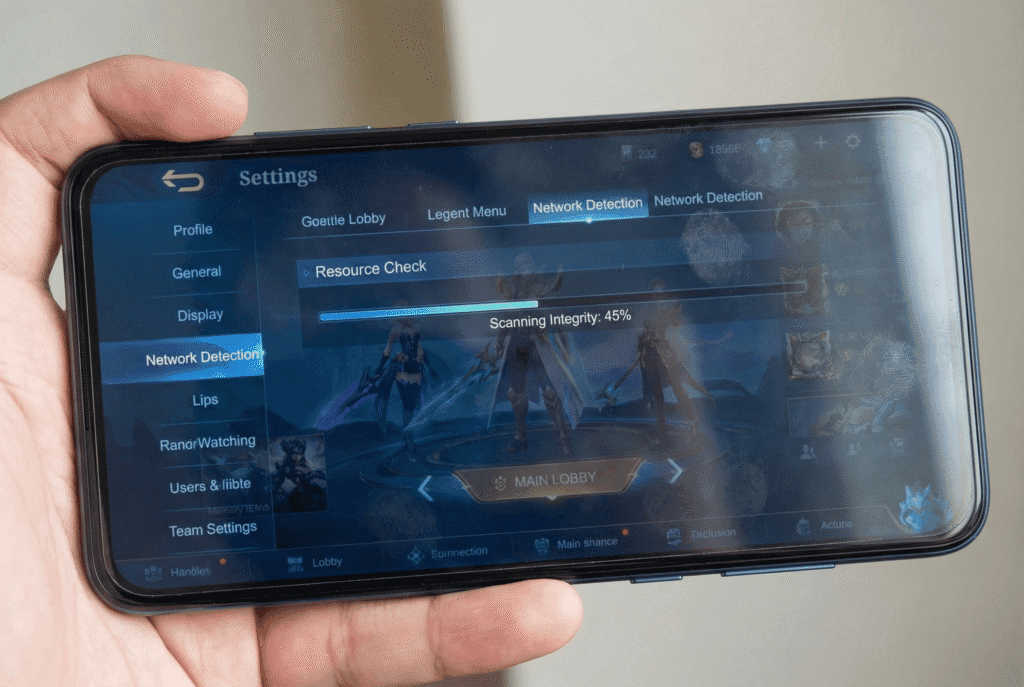
- Go to Settings (Top right gear icon).
- Tap Network Detection > Resource Check.
- Tap Check. The game will scan for missing files (the “hole” left by Zolaxis) and automatically download only the missing original skin file.
Daniel’s Pro Tip:
If you are uninstalling because of the White Screen error, simply removing the app won’t fix it. You usually just need to clear the cache.
(Read: How to Fix White Screen Without Uninstalling)
What Most Sites Won’t Tell You (Ban Safety)
Does uninstalling the app remove the risk of a ban?
Technically, Yes and No.
- Yes: If you remove the modified files (Method 2), the game server sees a “Clean” client. You are safe from future detection.
- No: If you used “Map Hacks” or “Drone View” in Ranked matches before uninstalling, your account behavior (strange movements) might have already been flagged on the server. Uninstalling the app won’t erase the server-side logs of your match history.
The Bottom Line: Returning to original skins is the best way to secure your account longevity.
Frequently Asked Questions (FAQ)
If I uninstall Zolaxis Patcher, will my diamonds disappear?
No, Lods. Zolaxis is a visual tool (client-side). It never touches your server-side account data like Diamonds or Win Rate. Your account currency is safe.
I deleted Zolaxis but my loading screen is still modified. How to remove?
Loading screens (Intro) are stored in a different folder than skins. Use Method 2 (The Rename Trick) above. It is the only sure way to wipe all modifications, including background music and loading screens.
Can I just install a new injector to overwrite the old one?
You can, but it is risky. Stacking scripts (Zolaxis on top of NIX Injector on top of ATA MLBG) causes file conflicts and crashes. We recommend a “Clean Install” before switching tools.
(Check: Is it safe to switch injectors?)