
Awit, Lods. “Injection Success” pero walang Skin? (Oh no, Idol. “Injection Success” but no Skin?)
You downloaded the app, selected the Gusion K’ skin, clicked “Inject,” and the app said “Success.” You opened Mobile Legends excitedly, but… nothing changed. You are still looking at the default skin. Scam ba ‘to? (Is this a scam?)
Relax, Ssob. The app isn’t a scam. The problem is your phone’s operating system. If you are using a newer device (Android 11, 12, or 13), Google has added a security wall called Scoped Storage that blocks apps like Zolaxis from touching your game files.
I’m Daniel Foster, and I’ve tested this on everything from a Samsung S23 to a budget Realme. Here is the definitive guide to bypassing the Android 11+ restriction so you can finally flex those skins.
Key Takeaways: Quick Fixes
- The Real Problem: Android 11+ hides the
/Android/data/folder from third-party apps for security.- The Native Fix: You must manually grant “Use this Folder” permission in a hidden system dialog.
- The “Heavy” Fix: If your phone is strict (Android 13/14), you might need a Virtual Space app.
- Important: If the app crashes instantly, you are facing a different issue (White Screen).
The Technical Explanation: What is Scoped Storage?
Before we fix it, you need to understand what is happening under the hood.
In older Android versions (10 and below), apps could easily read and write to your internal storage. It was like an open house party. Zolaxis could walk into the com.mobile.legends room and swap the furniture (skins) easily.
Android 11 introduced “Scoped Storage.”
Think of this like a strict security guard. Now, apps are only allowed to stay in their own room. If Zolaxis tries to enter the Mobile Legends room to inject a script, the security guard blocks it.
- The Result: Zolaxis thinks it injected the file (because it sent the command), but the Android system silently blocked it. That is why you see “Success” but get no results.
Solution 1: The “Use This Folder” Permission (Try This First)
Most devices (Oppo, Vivo, Xiaomi) have a hidden permission switch that allows you to bypass the security guard. You just need to know where to find it.
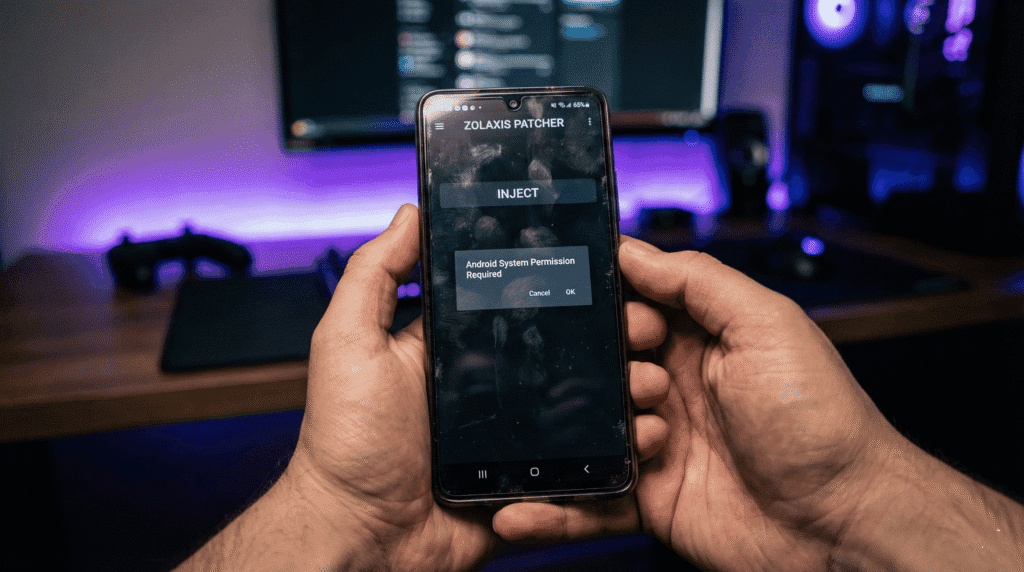
Step 1: Trigger the Permission Dialog
- Open Zolaxis Patcher.
- Go to the settings or try to inject a skin for the first time.
- A system dialog should pop up showing your file manager. It will look different from the Zolaxis interface.
Step 2: Navigate and Grant Access
- In the pop-up window, navigate to this exact path:
Android > data. - Look for a blue button at the bottom of the screen that says “USE THIS FOLDER” (or Gamitin ang folder na ito).
- Tap it.
- A confirmation box will appear asking “Allow Zolaxis Patcher to access files in data?” -> Click ALLOW.
Daniel’s Pro Tip:
If you cannot find theAndroid > datafolder in the pop-up (sometimes it appears empty on Samsung), you need to uninstall updates for the “Files” app in your system settings, or use Solution 2 below.
Solution 2: The Virtual Space Method (For Android 13/14)
If you are on Android 13 or 14 (HyperOS, OneUI 6.0), the security is tighter. The “Use This Folder” button might be grayed out or missing.
In this case, we need to use a Virtual Space. This creates a “fake” phone inside your phone (a sandbox) where the security rules are looser.
How to set up a Virtual Space for MLBB:
- Download a Virtual Space app like VMOS Pro or VFIN (commonly used for Game Guardian).
- Open the Virtual Space and “Import” two apps: Mobile Legends and Zolaxis Patcher.
- Launch Zolaxis Patcher inside the Virtual Space.
- Inject the skin.
- Launch Mobile Legends inside the Virtual Space.
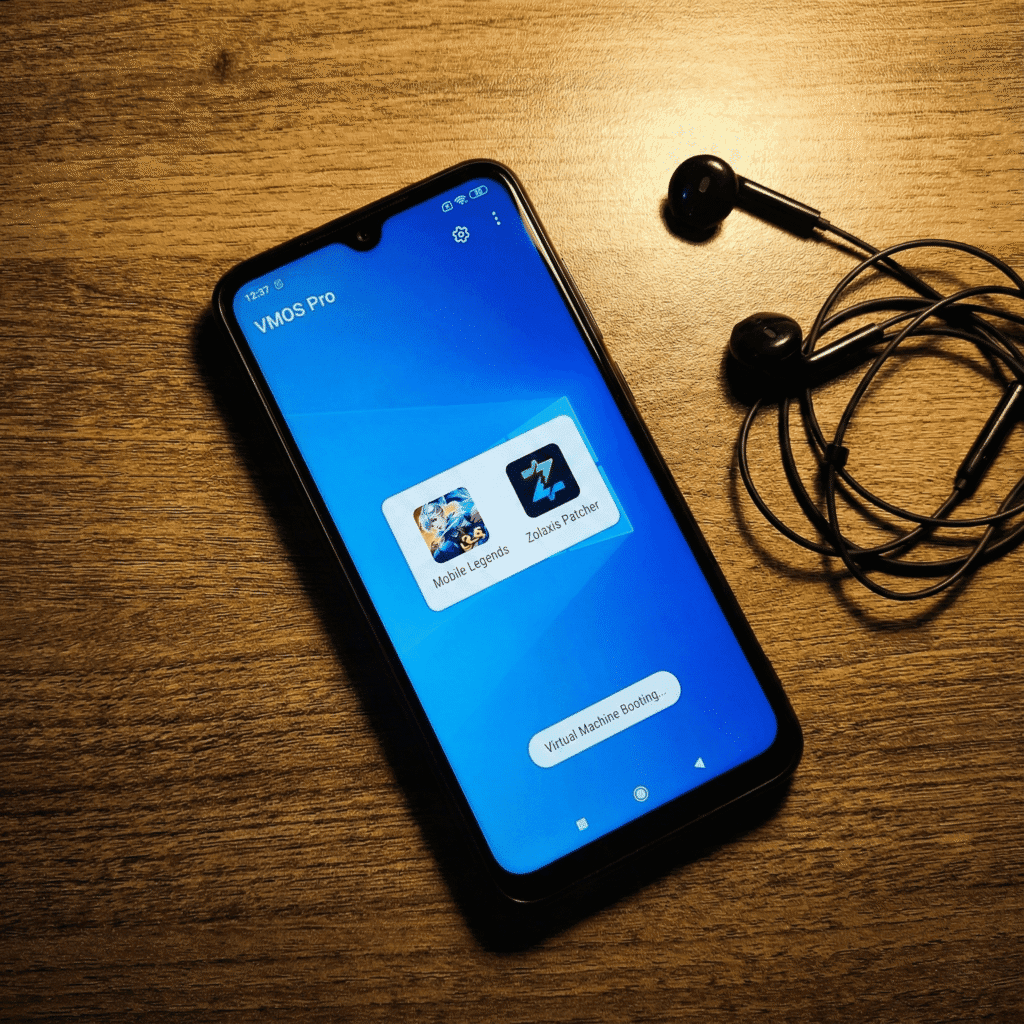
Why this works: Inside the virtual machine, the Android version simulates an older environment (like Android 7 or 9), allowing the injection to bypass Scoped Storage permissions entirely.
Warning: This method uses more battery and RAM. If your phone heats up, take a break!
Solution 3: The Manual ZArchiver Method (The “Script” Way)
If the app just won’t work, you can do what the “Script” users do. This is manual injection. This targets the Zolaxis patcher how to use intent for advanced users.
- Download ZArchiver from the Play Store (it has special permissions to see inside
/data). - Find the downloaded skin script (usually a
.unity3dfile). - Copy the file.
- Go to:
Android > data > com.mobile.legends > files > dragon2017 > assets > Art > Android. - Paste the file and select Replace.
What Most Sites Won’t Tell You (Risks & Real Talk)
Many “Free Skin” sites claim their app works perfectly on all Android versions. That is a lie. Here is the reality for 2025:
- Ghost Files: If you use the Virtual Space method, you are essentially installing MLBB twice. This consumes double the storage space (roughly 10GB total). Make sure you have space, or your phone will lag hard.
- The “Black Screen” Risk: If you force an injection on Android 13 without the proper permissions, you might corrupt the game’s cache, leading to a permanent black screen. If this happens, you don’t need to reformat your phone. You just need to clear the cache.
(Fix it here: White Screen & Loading Stuck Guide)
Frequently Asked Questions (FAQ)
I clicked “Use this Folder” but it says “Can’t use this folder for privacy.” What now?
This is common on Samsung and Pixel phones. You cannot use the standard app. You must use the Virtual Space method (Solution 2) or use a PC to transfer the files manually.
Does Zolaxis Patcher work on Android 14?
Directly? Usually no. Android 14 is very strict. You need to use a Virtual Space or wait for an update to the Zolaxis APK that supports the new “Shizuku” wireless debugging method (coming soon).
(Check for the latest version here)
Is it safe to give Zolaxis access to my Data folder?
Zolaxis only looks for com.mobile.legends. However, granting access to /data technically allows an app to see data from other apps too. Only do this if you trust the source of your APK.
(Read our Safety Analysis)